Tables
This feature of the Asset Manager is only available if the logged-in user has the Administrator role.
Tables within the Asset Manager are used to enter, edit, and delete data. Once a table has been created, every user initially has full access to the records until other permissions are granted.
Rules
When working with tables, there are a few rules to keep in mind:
- Table and column names must not begin with an underscore.
- Once a table has been created, it cannot be renamed.
- The name and data type of a column cannot be changed after the fact.
- The maximum length, total number of decimal places, and number of decimal digits for columns cannot be changed after the fact.
In general, when making subsequent changes to table definitions, you should always consider that users may have already entered data based on the existing definition, which could become invalid with a modified definition. This applies, for example, to minimum and maximum values, regular expressions, drop-down lists, default values, and date formats. It is the administrator’s responsibility to consider potential impacts in advance. The Asset Manager itself accepts entries made before the table definition was changed. However, these can only be modified within the scope of the new definition.
Data types
A table consists of one or more columns. Columns can contain different data types:
For the detailed view of a data type, please click on the respective column header.
Textbox
Description
Used to enter single-line text, such as a name, street, ZIP code, or city.
SQL data type
Value range
The maximum length can be specified as 1–4000.
A common misconception is the assumption that in NVARCHAR(n), the n defines the number of characters. In NVARCHAR(n), however, n defines the length of the string in byte pairs (0–4,000). n never defines the number of characters that can be stored.
This misunderstanding arises because when using characters defined in the Unicode range 0–65,535, one character can be stored per byte pair. In higher Unicode ranges (65,536–1,114,111), however, a single character can use two byte pairs.
Input mask
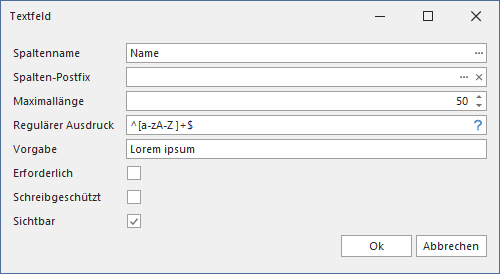
- Column Name: The name of the column (required).
- Column Postfix: Can always be left blank. Included only for compatibility with the previous version.
- Maximum Length: 1 - 4000, Default: 50
- Regular Expression: Must be satisfied during input if specified; internally, a regex.
- Default Value: The default value for this field.
- Is Required: If required, a value must be specified. The field is marked in red.
- Read-Only: Defines whether the field is read-only.
- Is Visible: Specifies whether the field is visible to the user.
Multiline Textbox
Description
Used to store multi-line textboxes, such as a description of something. This field can also contain URIs; when clicked, the links are passed to a browser and displayed there.
SQL data type
Value range
Up to 2 GB of data (more of a theoretical limit).
Input mask
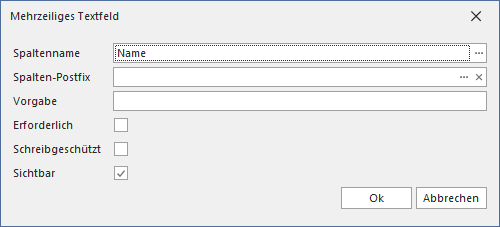
- Column Name: The name of the column (required).
- Column Postfix: Can always be left blank. Included only for compatibility with the previous version.
- Default Value: The default value for this field.
- Is Required: If required, a value must be specified. The field is marked in red.
- Read-Only: Defines whether the field is read-only.
- Is Visible: Specifies whether the field is visible to the user.
Date Picker
Description
Used to enter date values, such as a birthday.
SQL data type
Value range
01.01.1753 - 31.12.9999
Input mask
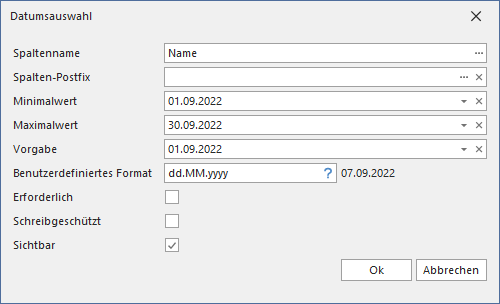
- Column Name: The name of the column (required).
- Column Postfix: Can always be left blank. Included only for compatibility with the previous version.
- Min Value: The smallest value that can be entered.
- Max Value: The largest value that can be entered.
- Default Value: The default value for this field.
- Custom Format: Defines the formatting for display in the grid.
- Is Required: If required, a value must be specified. The field is marked in red.
- Read-Only: Defines whether the field is read-only.
- Is Visible: Specifies whether the field is visible to the user.
Numeric Field (int)
Description
Used to enter negative and positive integers within the specified range.
SQL data type
Value range
-231 (-2.147.483.648) - 231-1 (2.147.483.647)
Input mask

- Column Name: The name of the column (required).
- Column Postfix: Can always be left blank. Included only for compatibility with the previous version.
- Min Value: The smallest value that can be entered.
- Max Value: The largest value that can be entered.
- Default Value: The default value for this field.
- Is Required: If required, a value must be specified. The field is marked in red.
- Read-Only: Defines whether the field is read-only.
- Is Visible: Specifies whether the field is visible to the user.
Numeric Field (big int)
Description
Used to store negative and positive integers within the specified range. This data type is intended for use when integer values might exceed the range supported by the int data type.
SQL data type
Value range
-263 (-9.223.372.036.854.775.808) - 263-1 (9.223.372.036.854.775.807)
Input mask
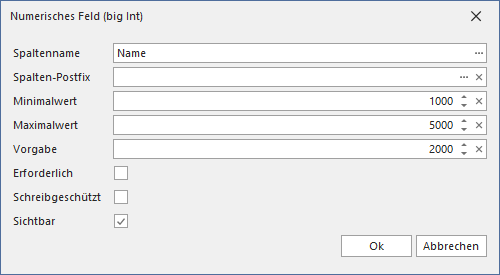
- Column Name: The name of the column (required).
- Column Postfix: Can always be left blank. Included only for compatibility with the previous version.
- Min Value: The smallest value that can be entered.
- Max Value: The largest value that can be entered.
- Default Value: The default value for this field.
- Is Required: If required, a value must be specified. The field is marked in red.
- Read-Only: Defines whether the field is read-only.
- Is Visible: Specifies whether the field is visible to the user.
Numeric Field (Decimal)
Description
Used to enter decimal numbers, such as prices, distances, sizes, or weights.
SQL data type
Value range
With a maximum total number of decimal digits (38) and no decimal places (0), valid values range from -1038 +1 to 1038 - 1
The total number of decimal digits (precision) is the number of all digits in a number. The number of decimal places indicates the number of digits to the right of the decimal point in a number. For example, the number 123.45 has a total of 5 decimal digits and 2 decimal places. More information.
Input mask
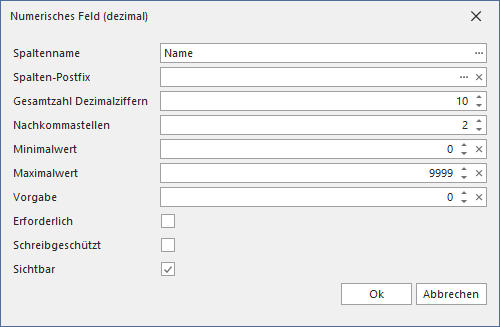
- Column Name: The name of the column (required).
- Column Postfix: Can always be left blank. Included only for compatibility with the previous version.
- Precision: The total number of digits in a number.
- Numeric Scale: The number of digits to the right of the decimal point in a number.
- Min Value: The smallest value that can be entered.
- Max Value: The largest value that can be entered.
- Default Value: The default value for this field.
- Is Required: If required, a value must be specified. The field is marked in red.
- Read-Only: Defines whether the field is read-only.
- Is Visible: Specifies whether the field is visible to the user.
Dropdown List (values)
Description
Defines a list of static values from which one can be selected, e.g., yes/no, purchase/lease/financing, or all federal states: Baden-Württemberg/[...]/Thuringia.
SQL data type
Value
Bis zu 2 GB Daten (eher theoretisch).
Input mask
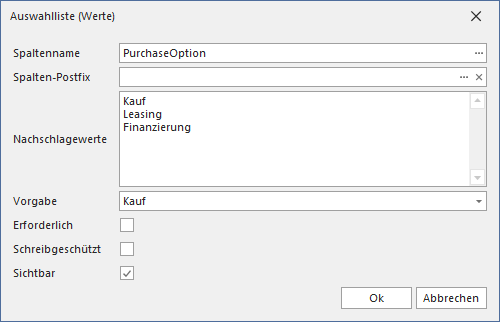
- Column Name: The name of the column (required).
- Column Postfix: Can always be left blank. Included only for compatibility with the previous version.
- Default Value: The default value for this field.
- Is Required: If required, a value must be specified. The field is marked in red.
- Read-Only: Defines whether the field is read-only.
- Is Visible: Specifies whether the field is visible to the user.
Dropdown List (SQL)
Description
Defines a list of values returned by an SQL query, from which one can be selected, such as all inventoried computers or all manufacturers.
SQL data type
Value range
Up to 2 GB of data (more of a theoretical limit).
Input mask
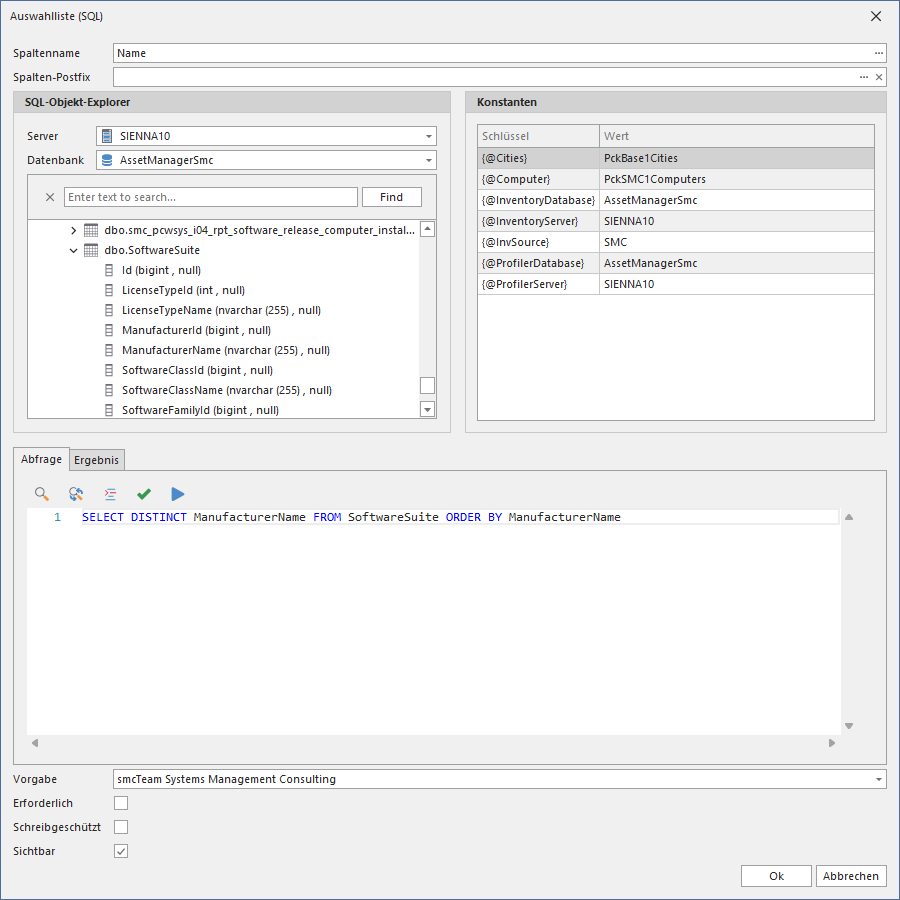
- Column Name: The name of the column (required).
- Column Postfix: Can always be left blank. Included only for compatibility with the previous version.
- Query: An SQL script that returns a column from which a value can be selected.
- Default Value: The default value for this field.
- Is Required: If required, a value must be specified. The field is marked in red.
- Read-Only: Defines whether the field is read-only.
- Is Visible: Specifies whether the field is visible to the user.
Dropdown List (SQL MC)
Description
Defines a list of values provided via an SQL query, from which multiple items can be selected, such as all cities in Germany or the users of a license.
SQL data type
Value range
Up to 2 GB of data (more of a theoretical limit).
Input mask
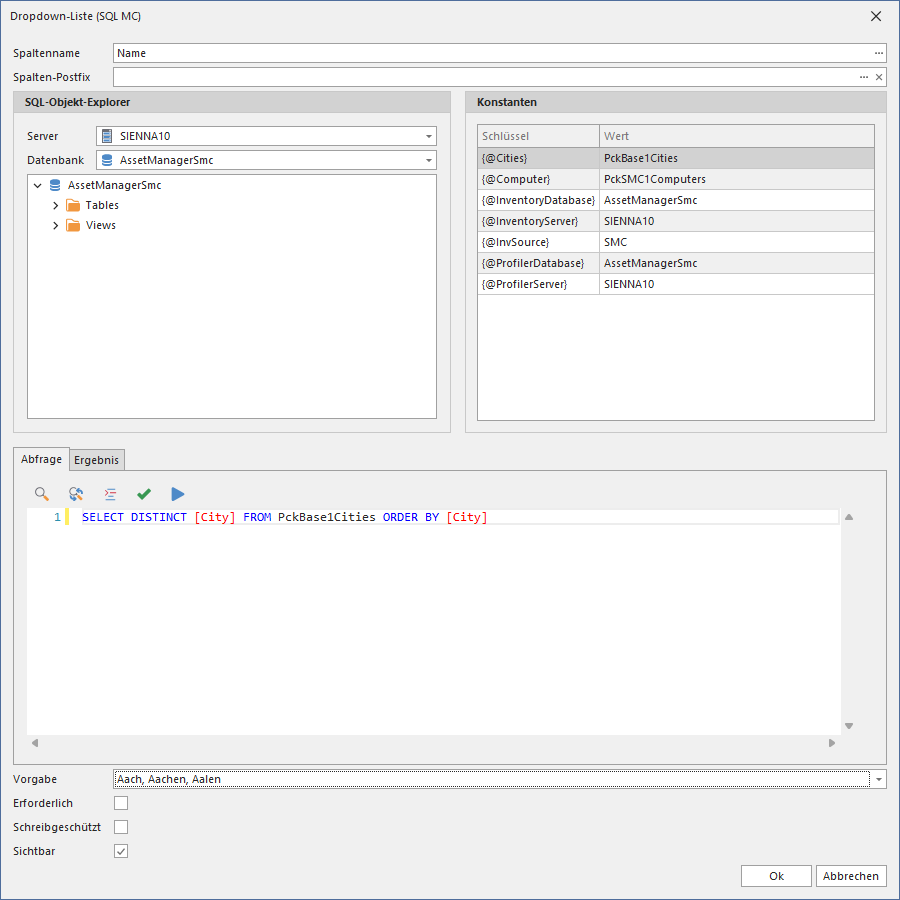
- Column Name: The name of the column (required).
- Column Postfix: Can always be left blank. Included only for compatibility with the previous version.
- Query: An SQL script that returns a column from which multiple values can be selected.
- Default Value: The default value for this field.
- Is Required: If required, a value must be specified. The field is marked in red.
- Read-Only: Defines whether the field is read-only.
- Is Visible: Specifies whether the field is visible to the user.
Creating Tables
An editor is available for creating and editing tables:
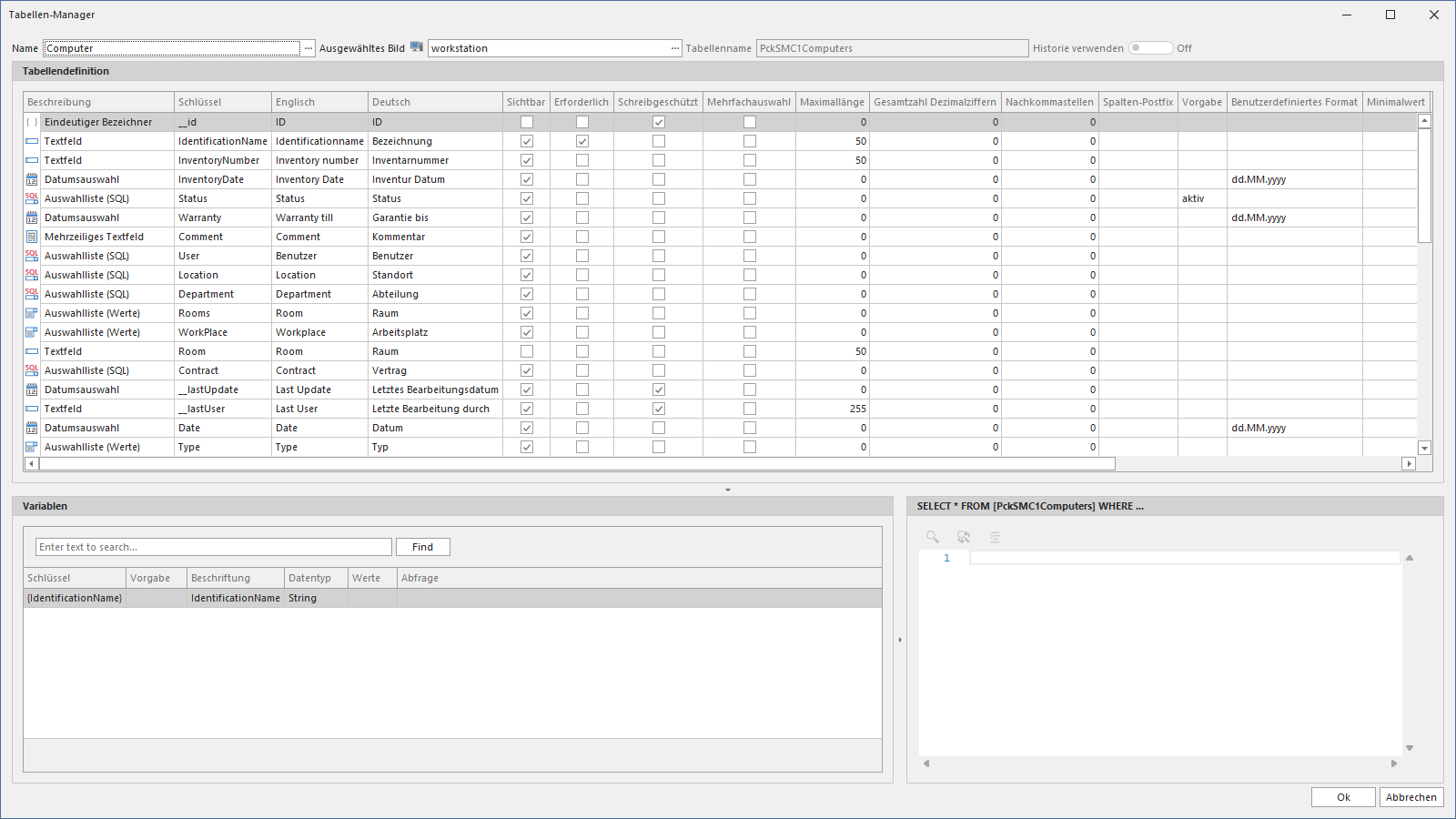
The following video shows how to create a table with columns:
Tables with History
If there is a need to document the lifecycle of a data record, a table can be equipped with a history function.
This function can be enabled once when creating a table and cannot be changed afterward. This also applies to existing tables that were created without history.
To enable the history table feature, the Enable Table History option must be selected in the settings.
For tables with the history function enabled, a second table is maintained in the background alongside the original table. This table not only contains all columns of the original table but also two additional columns that record the date of the last change and the type of the last action (INSERT, UPDATE, DELETE).
Naming convention: If a table named myTable is created, the name of the history table is myTable_History.
Tables with history can—just like regular tables—be modified later, provided the above rules are followed.
Before using the history function, you should carefully consider whether this feature is truly necessary. Based on the lifecycle of a data record, it is created once, modified n times, and deleted once. If you assume only one modification per record for 100,000 records, this results in 300,000 records in the history table. The respective administrator is responsible for deleting the records in the history tables.
The following video shows how to create a table with a history function:
Tables with Variables and Filtering
We already learned about variables in the Queries chapter. They are used to filter the requested data in advance based on a condition, so that not all data is returned every time. This also works with tables by creating a variable and referencing it within the WHERE clause:
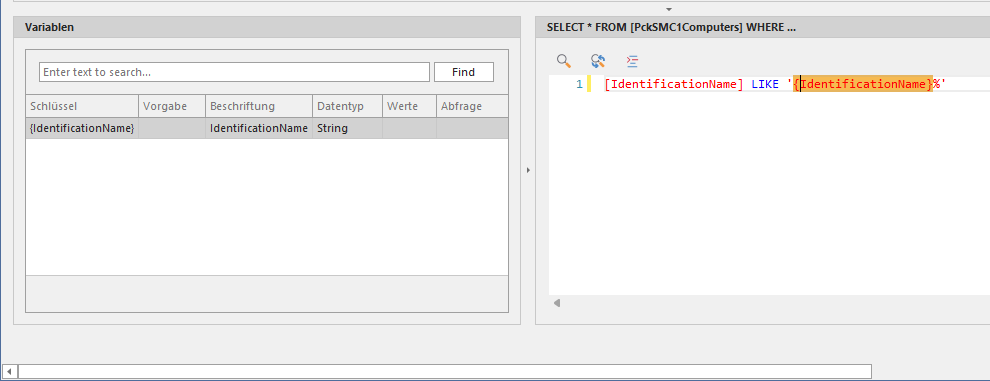
However, variables within tables are also required when the table is referenced via a drill-down. This reference can only be set up if the table has a variable.
After selecting a column, you can automatically create a variable via the context menu using Create Variable.
The following video demonstrates how to use variables and filters in conjunction with a table:
Importing Data
Instead of creating individual records manually, you can use the Asset Manager to import data from sources such as Excel spreadsheets. The individual columns of a data record must be separated by a horizontal tab (➜ = 0x09), and each line must end with a CR/LF (↲ = 0x0D, 0x0A), e.g.:
Value1 ➜ Value2 ➜ Value3 ↲There are two options available for data import:
Data with a header
Data can include a header row specifying the names of the columns to be imported. In this case, the columns do not need to be listed in the order they appear in the table. Additionally, the columns “Last Update” (Last edited date) and “Last User” (Last edited by) may also be included, as they will be recognized and filtered out.
Column3 ➜ Column2 ➜ Column1 ➜ Last Update ➜ Last User ↲
Value3 ➜ Value2 ➜ Value1➜ 05.12.2022 09:37 ➜ Domain\User ↲
Importing data with a header is the preferred method because it prevents confusion between first and last names or ZIP codes and cities, etc.
Data without a header
The columns of data without a header must be listed in the same order as they appear in the table; otherwise, a valid assignment may not be possible. Additionally, the fields for Last Update and Last User must not be included.
Value1 ➜ Value2 ➜ Value3 ↲The following video demonstrates the import of data with and without a header.