Navigation Tree
The Asset Manager features a navigation tree on the left-hand side, through which you can access the available objects.
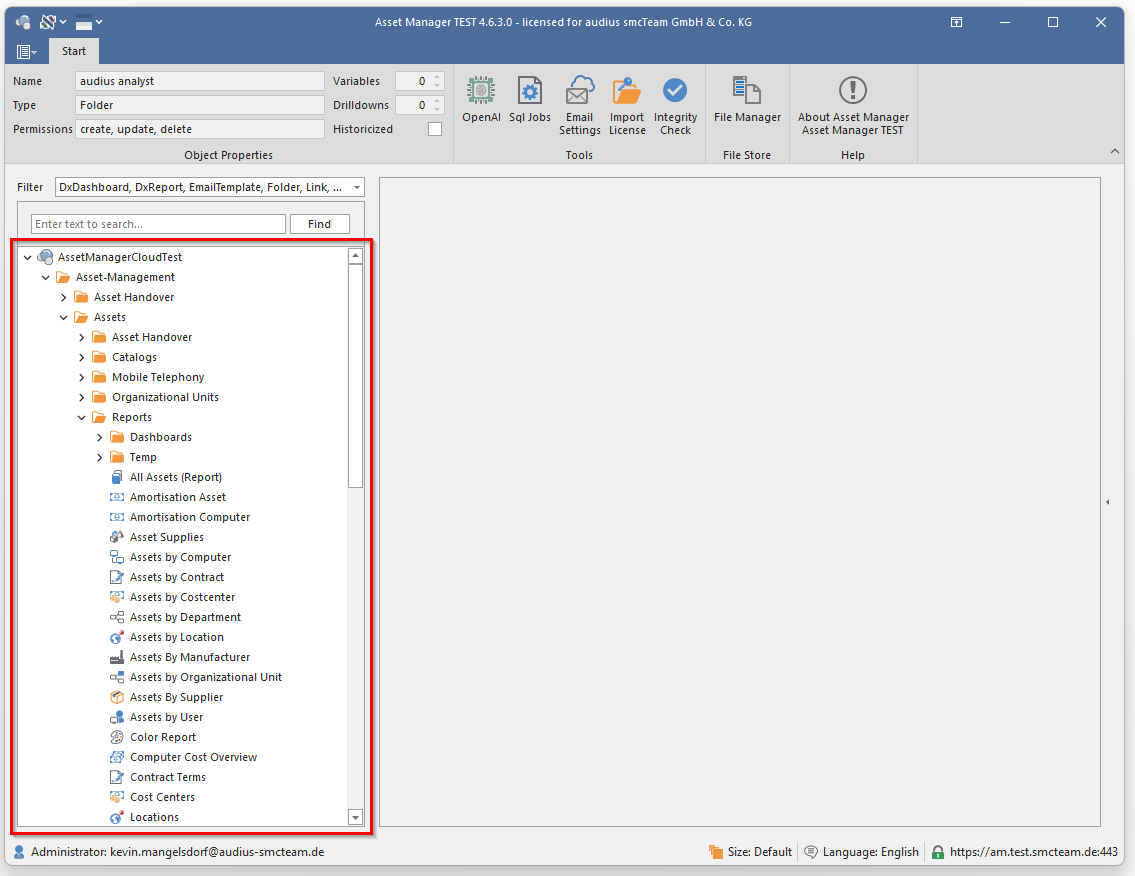
You can use the Ctrl+F shortcut to search for objects within the navigation tree.
The following objects can be created within the navigation tree:
This feature of the Asset Manager is only available if the logged-in user has the Administrator role.
Moving or Showing/Hiding Objects
Objects within the navigation tree can be moved or shown and hidden. The latter function has nothing to do with permissions; rather, it is a global setting. If an object is hidden, it is no longer visible to anyone.
Recursive Deletion of Objects
If the appropriate permissions are available, objects within the Asset Manager can be deleted using the context menu. Normally, only one object can be deleted at a time. Additionally, folders can only be deleted if they are empty. However, there are also cases where a folder and all objects it contains need to be deleted.
If you press the Shift+Ctrl+Alt key combination and then right-click to open the navigation context menu, an additional menu item labeled Delete Recursively appears, which allows you to delete a folder structure and its contents. This command cannot be executed on the root node.
Please note that recursive deletion permanently deletes all objects within the selected folder and the folder itself, and this action cannot be undone.