Deploy a new client version & update plugins
Deploy a new client version
Step 1: On the server where the SCCM Manager Web Service is installed, run the Start menu program ‘SCCM Manager Client Setup’.
Step 2: In the programme, go to the ‘Client Setup’ tab.
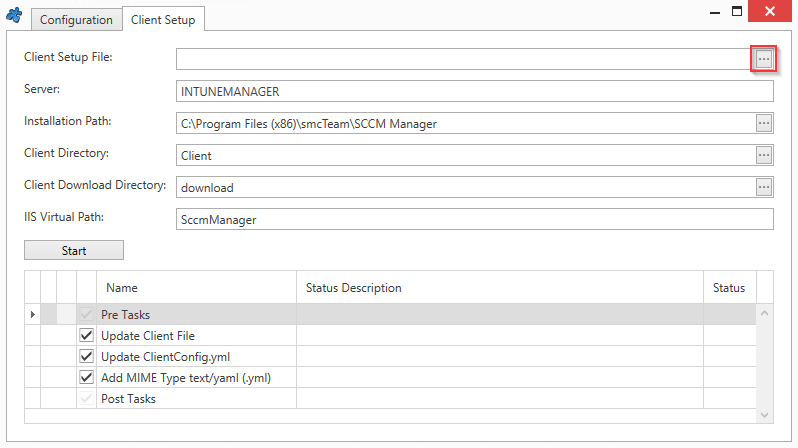
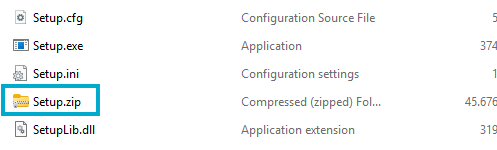
Step 3: Select the file “Setup.zip” from the extracted folder
“SCCMManagerClient_3.7.0.X_Setup.zip”.
Step 4: Click the ‘Start’ button to deploy the new client.
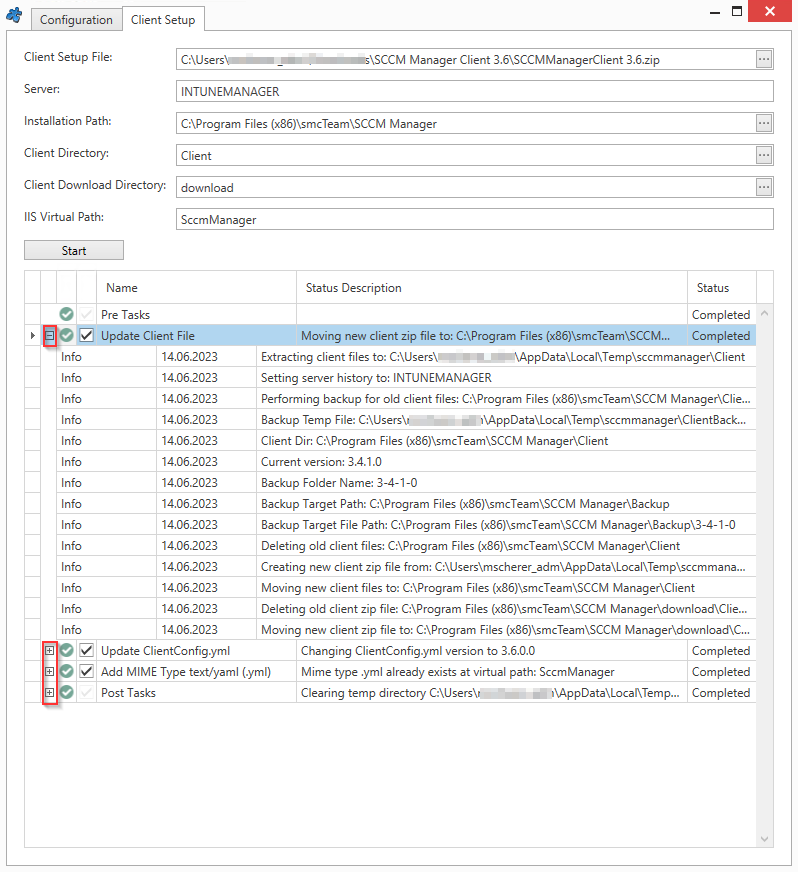
Once the installation has been completed successfully and without errors, the new client can be used.
Additional Information:
Existing user settings are not carried over during the update. A new client folder is created for the new version in the %LocalAppData% directory.
This means that saved settings such as login screen configuration, server history and credentials will be lost.
Here is an example of a version update from version 3.7.0.1 to 3.7.0.2:
Old path: "%LocalAppData%\audius_smcTeam_Systems_Ma\SCCMManager.exe_Url_zxr..\3.7.0.1\user.config"
New path: "%LocalAppData%\audius_smcTeam_Systems_Ma\SCCMManager.exe_Url_zxr..\3.7.0.2\user.config"
Certain predefined settings can only be adjusted in the following file:
C:\Program Files (x86)\smcTeam\SCCM Manager\Client\SCCMManager.exe.config
After modifying the ‘SCCMManager.exe.config’ file, the ‘Client.zip’ file in the ‘Download’ folder must be repackaged. To do this, the Client Loader process must be restarted without selecting a Setup.zip file.
      <setting name="ServerHistory" serializeAs="String">
        <value>SERVER-FQDN-1|SERVER-FQDN-2</value>
      </setting>

      <setting name="EnableSSL" serializeAs="String">
        <value>True</value>
      </setting>

      <setting name="ForceSSL" serializeAs="String">
        <value>True</value>
      </setting>
AppConfig.xml
After deploying a new version of the SCCMManager client, the ‘CurrentClientVersion’ must be updated in the AppConfig.xml file.
The ‘AppConfig Editor’ can be used for this purpose.
Further Information
Update Plugins
Step 1: The new plugin DLLs must be replaced in the ‘C:\Program Files (x86)\smcTeam\SCCM Manager\Resources\Assemblies\’ folder
Step 2: To ensure that the plugins are updated, the ‘SCCM Manager Update Plugins‘ tool must be run with administrator rights. Once the process has completed successfully, the new plugins will be active.