Using the Honeywell Voyager XP 1470 Scanner
Starting with version 4.5, the Asset Manager can be used with the Honeywell Voyager XP 1470 scanner. In principle, however, other scanners should also work if they
- are connected via a USB interface and simulate keyboard input (Human Interface Device, HID).
- recognize and display German umlauts correctly.
- send the start signal STX (ASCII 0x02) before sending the data.
- send the end signal ETX (ASCII 0x03) after sending the data.
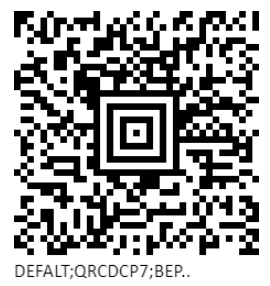
To ensure this function works, the scanner must be programmed once. To do this, after unpacking and connecting the scanner to the USB port, the following code must be scanned once:
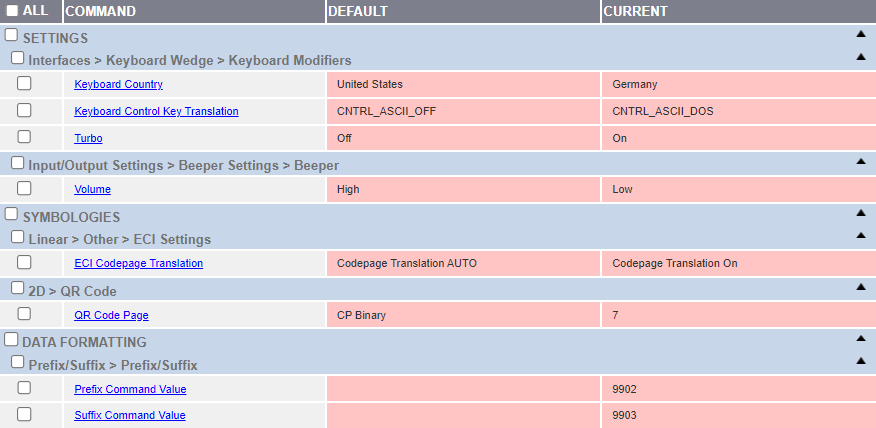
The following table shows which properties have been customized from the default settings:
Using the Scanner
In principle, using the scanner is straightforward: Open the table record you want to edit. Then place the mouse cursor in the field where you want to store the value for a machine-readable code. Once the code has been scanned, it is entered into the previously selected field.
Searching with the Scanner
You can also use the scanner to search for a specific record within a table. To do this, open a table in the Asset Manager’s navigation tree and ensure that the corresponding tab is selected. Then scan the machine-readable code. Once the scanning process is detected, the Asset Manager performs a full-text search of all cells within the table. If exactly one record is found, it opens for editing. If multiple records are found, they are displayed in a filtered list, and it is up to the user to decide what to do with them.
Completing/Filling in Parts of Records
Using the scanner, multiple fields of a data record can be filled in during a single scan. For this to work, a QR code must contain parts of this data record. However, this information is not included in standard QR codes. As the manufacturer, we have therefore developed a class that allows this information to be stored in a QR code in a tamper-proof manner. The following section describes how this class works.
Documentation of the smcTeam.Tools Classes
This library provides tools for validating and manipulating JSON data as well as for generating QR codes. Essentially, it comprises the following classes:
- KeyValueEntry Represents individual entries with a key, a value, and associated flags.
- JsonIntegrity Contains methods for creating a JSON array from KeyValueEntry objects, for calculating a checksum, and for validating, updating, and formatting JSON data.
- QrCode Provides methods for generating a QR code (as SVG) from text or a collection of KeyValueEntry objects.
KeyValueEntry
Description
The KeyValueEntry class is used to represent entries processed in a JSON array. Each entry consists of:
- Key: A unique key as a string.
- Value: An object containing the associated value (e.g., number, string, Boolean, etc.).
- Flags: An enum that describes how the value is used.
Enum: EntryFlags
The flags are defined by the nested enum EntryFlags:
- None: Default value; no special processing occurs.
- InfoValue: The value is used for informational purposes.
- SearchValue: The value is used as a search term.
- DataValue: The value is used for storage.
- MatchValue: The value is used later for comparison operations.
Example
using smcTeam.Tools;

var entry = new KeyValueEntry("Username", "john.doe", KeyValueEntry.EntryFlags.InfoValue);
Console.WriteLine($"Key: {entry.Key}, Value: {entry.Value}, Flags: {entry.Flags}");
JsonIntegrity
Description
The static class JsonIntegrity provides functionality to:
- Create a JSON array from a collection of KeyValueEntry objects.
- Calculate a checksum to verify the integrity of the JSON content.
- Remove or update existing checksum objects.
- Output the JSON format either compressed (minified) or formatted (beautified).
- Convert a JSON array back into its original KeyValueEntry objects.
In this process, a JSON array is created in which each element (except the last one, which contains the checksum) has the properties Key, Value, and Flags. The entries are sorted alphabetically by key before the checksum is calculated. A separate object containing the calculated hash as the checksum is then appended to the end of the array.
Important Methods
- GenerateJsonArray(IEnumerable keyValueEntries) Generates a JSON array from the provided entries, sorts them, and appends a checksum object at the end.
- GetChecksum(JArray jArray) or GetChecksum(string jsonString) Calculates the checksum for a JSON array. This ensures that the JSON is flat (i.e., without nested objects).
- GenerateChecksum(JArray jArray) or GenerateChecksum(string jsonString) First removes any existing checksums and then inserts a new checksum object at the end of the JSON array.
- UpdateChecksum(JArray jArray) or UpdateChecksum(string jsonString) Updates the existing checksum object by recalculating the checksum.
- RemoveChecksum(JArray jArray) or RemoveChecksum(string jsonString) Removes the checksum object from the JSON array.
- ChecksumIsValid(JArray jArray) or ChecksumIsValid(string jsonString) Checks whether the checksum stored in the JSON matches the newly calculated one.
- ToMinifiedString(JArray jArray) or ToMinifiedString(string jsonString) Returns the JSON string in a compact (minified) form.
- BeautifyJson(string json) Returns the JSON string in a formatted (indented) format.
- JsonToKeyValueEntries(string jsonString) Converts a JSON string containing an array of objects into a list of KeyValueEntry objects.
- IsValidJson(string value) Checks whether the passed string represents valid JSON.
Example: Creating a JSON array
using smcTeam.Tools;
using Newtonsoft.Json.Linq;
using System;
using System.Collections.Generic;

// Creating a list of KeyValueEntry-Objekten
var entries = new List<KeyValueEntry>
{
    new KeyValueEntry("Name", "John Doe", KeyValueEntry.EntryFlags.InfoValue),
    new KeyValueEntry("Age", 30, KeyValueEntry.EntryFlags.DataValue),
    new KeyValueEntry("Email", "john@example.com", KeyValueEntry.EntryFlags.SearchValue)
};

// Generating the JSON array with attached checksum
JArray jsonArray = JsonIntegrity.GenerateJsonArray(entries);

// Output of the formated JSON string
Console.WriteLine(JsonIntegrity.BeautifyJson(jsonArray.ToString()));
Example: Verifying the Checksum
// Verify if the checksum in the JSON array is valid
bool isValid = JsonIntegrity.ChecksumIsValid(jsonArray);
Console.WriteLine("Is the checksum valid? " + isValid);
QrCode
Description
The static class QrCode provides methods for generating QR codes as SVG strings. There are two variants of the GenerateSvgString method:
- GenerateSvgString(string codeText, int border = 0, string foreground = "#000000", string background = "#ffffff") Generates a QR code from plain text.
- GenerateSvgString(IEnumerable keyValueEntries, int border = 0, string foreground = "#000000", string background = "#ffffff") Generates a QR code from a JSON array generated from a collection of KeyValueEntry objects. Internally, the JSON array (including checksum) is first generated and minified.
Parameters
- codeText: The text to be encoded in the QR code.
- keyValueEntries: A collection of KeyValueEntry objects that are processed into a JSON array.
- border: Width of the border around the QR code (default: 0).
- foreground: Color of the QR code content (default: “#000000”).
- background: Background color (default: “#ffffff”).
Example: Generate a QR code from plain text
using smcTeam.Tools;
using System;

string qrSvg = QrCode.GenerateSvgString("This is an example text");
Console.WriteLine(qrSvg);
Example: Generating a QR code from KeyValueEntry objects
using smcTeam.Tools;
using System;
using System.Collections.Generic;

var entries = new List<KeyValueEntry>
{
    new KeyValueEntry("Name", "John Doe", KeyValueEntry.EntryFlags.InfoValue),
    new KeyValueEntry("Age", 30, KeyValueEntry.EntryFlags.DataValue),
    new KeyValueEntry("Email", "john@example.com", KeyValueEntry.EntryFlags.SearchValue)
};

string qrSvgEntries = QrCode.GenerateSvgString(entries);
Console.WriteLine(qrSvgEntries);
Summary and examples
These classes provide the following core functionalities:
- Creating and Managing JSON Data: Using the JsonIntegrity class, you can generate a consistently structured JSON array of KeyValueEntry objects, calculate a checksum, and use it to ensure data integrity.
- Validation and Formatting: Check whether the JSON is valid, remove or update existing checksums, and output the JSON as either a minified or formatted string.
- QR code generation: Using the QrCode class, you can generate QR codes as SVG files from both plain text and structured JSON data (created using KeyValueEntry and JsonIntegrity).
The following code examples demonstrate practical usage:
Example 1: Generate and validate a JSON array with a checksum
using smcTeam.Tools;
using Newtonsoft.Json.Linq;
using System;
using System.Collections.Generic;

// Creating the entries
var entries = new List<KeyValueEntry>
{
    new KeyValueEntry("Name", "John Doe", KeyValueEntry.EntryFlags.InfoValue),
    new KeyValueEntry("Age", 30, KeyValueEntry.EntryFlags.DataValue),
    new KeyValueEntry("Email", "john@example.com", KeyValueEntry.EntryFlags.SearchValue)
};

// Generate JSON array with checksum
JArray jsonArray = JsonIntegrity.GenerateJsonArray(entries);
Console.WriteLine("Formated JSON:");
Console.WriteLine(JsonIntegrity.BeautifyJson(jsonArray.ToString()));

// Validate checksum
bool isValid = JsonIntegrity.ChecksumIsValid(jsonArray);
Console.WriteLine("Is the checksum valid? " + isValid);
Example 2: Generate a QR code from plain text and from KeyValueEntry objects
using smcTeam.Tools;
using System;
using System.Collections.Generic;

// QR code from simple text
string qrSvgText = QrCode.GenerateSvgString("This is an example text");
Console.WriteLine("QR code (Text):");
Console.WriteLine(qrSvgText);

// QR code from a list of KeyValueEntry objects
var entries = new List<KeyValueEntry>
{
    new KeyValueEntry("Name", "John Doe", KeyValueEntry.EntryFlags.InfoValue),
    new KeyValueEntry("Age", 30, KeyValueEntry.EntryFlags.DataValue),
    new KeyValueEntry("Email", "john@example.com", KeyValueEntry.EntryFlags.SearchValue)
};

string qrSvgEntries = QrCode.GenerateSvgString(entries);
Console.WriteLine("QR code (KeyValueEntry):");
Console.WriteLine(qrSvgEntries);