Settings
Settings are stored in the Asset Manager in the following directory:
C:\Users\<Current User>\AppData\Local\smcTeam\AssetManager\4
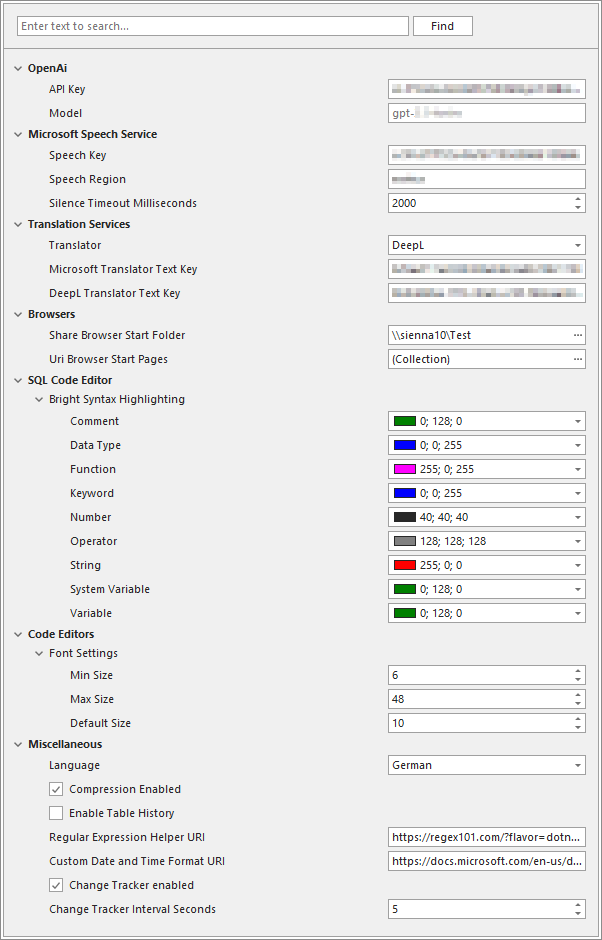
The AssetManagerSettings.json file contains the Asset Manager's custom settings, which can be edited using the following dialog:
OpenAI
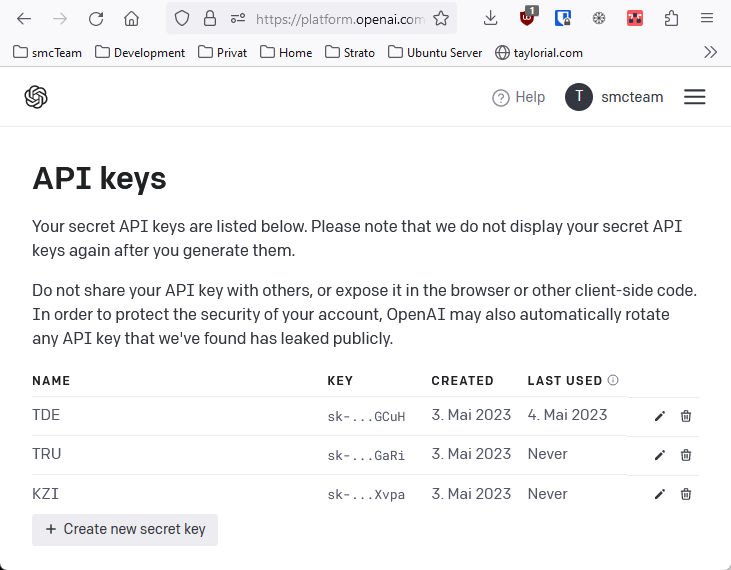
API Key: To obtain an API key, you must create an account with OpenAI. You can then generate a key by clicking Create new secret key, enter it in the Asset Manager, and start using it.
Model: The model used within OpenAI: gpt-4-turbo (currently read-only; will be selectable later).
Microsoft Speech Services
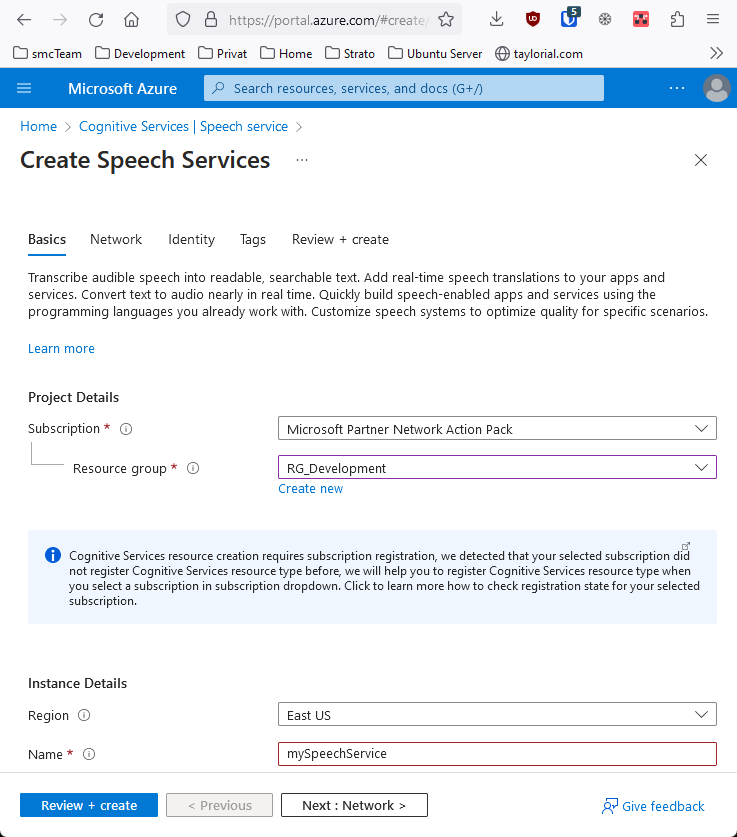
First, you need to create a Speech Service within Azure:
You can then use one of the two keys and the region:
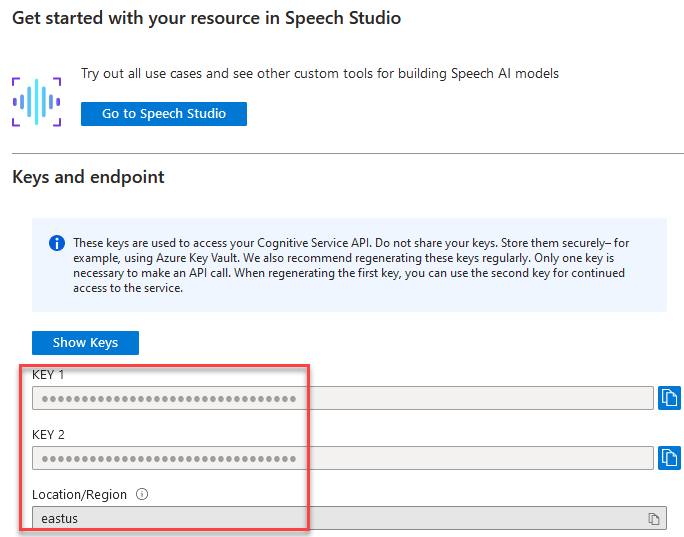
Speech Key: One of the two keys for the Speech Service.
Speech Region: The region of the Speech Service.
Silence Timeout Milliseconds: While speaking into a microphone, the system should automatically detect when the user has finished speaking a text. This is done by detecting silence at the end of a spoken sentence, as described here. This value should be between 1,000 and 2,500 milliseconds.
Translation Services
Translator: You can select DeepL or Microsoft for translation assistance.
Microsoft Translator Text Key / Deepl Translator Text Key: Depending on which translation service was specified under Translator, the corresponding key for DeepL or Microsoft can be entered here. These keys are not part of the Asset Manager but can be purchased separately as needed. For Microsoft, please refer to the Azure Cognitive Services Translator, while in other cases the DeepL API can be used.
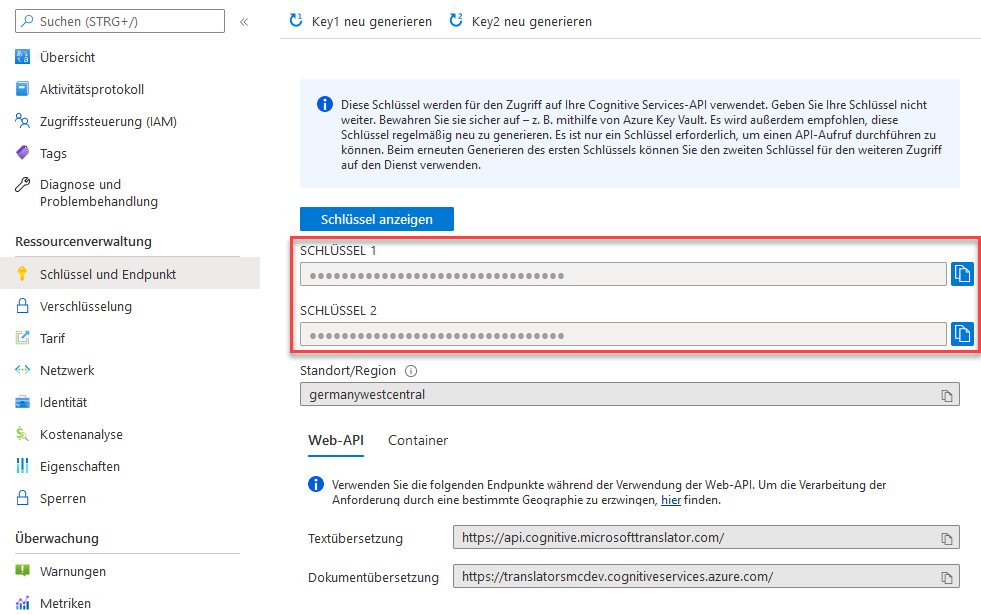
For translations using Microsoft, a Translator resource must be created within Azure. Within this resource, there are two keys under Key and Endpoint; either one can be selected and entered under Microsoft Translator Text Key.
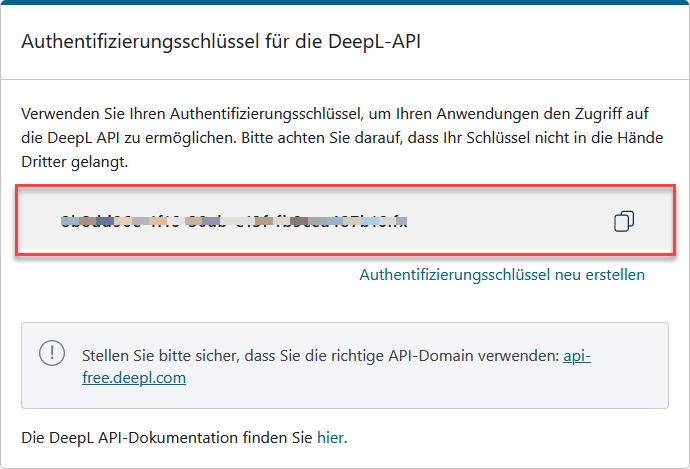
For translations using DeepL, a free account can be created to access the REST API. You can then find the required key in your DeepL account:
Browsers
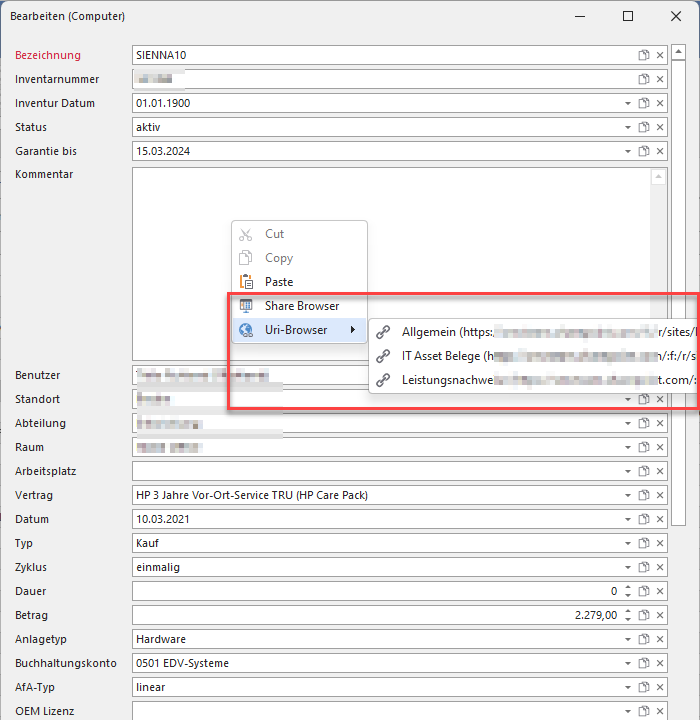
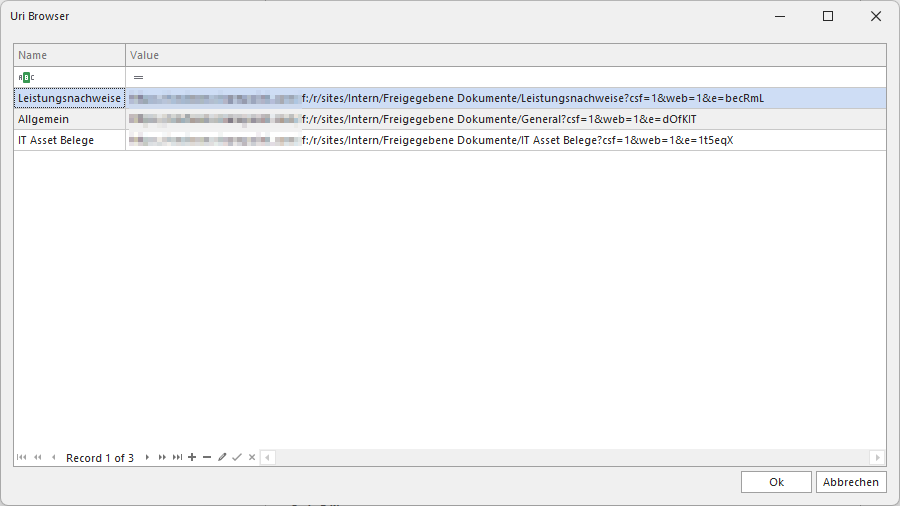
To allow links to files or other web pages to be added when editing tables, you can specify the appropriate start pages/URIs in the following settings.
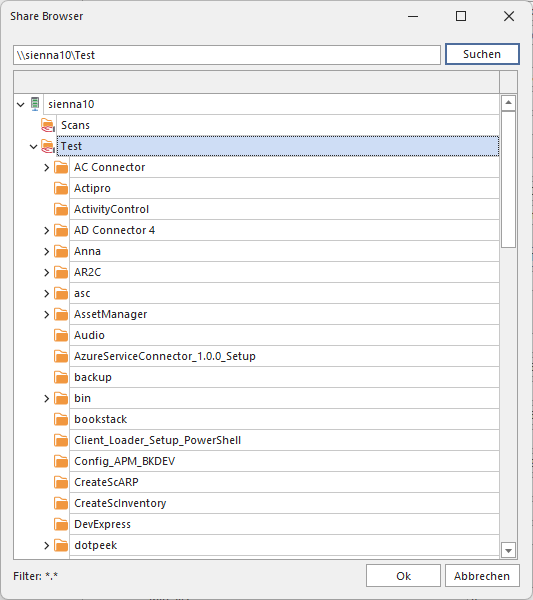
Share Browser Start Folder: For files on the local network, you can specify the desired starting point for browsing files.
URI Browser Start Pages: Since you cannot “browse” through URIs as you can with files, you can use as many starting points as you like here for specifying links.
SQL Code Editor
This section defines the colors to be used within an SQL code editor.
Code Editors
Setting the minimum, maximum, and default font sizes within the SQL code editor.
Miscellaneous
Language: This option allows you to switch the entire Asset Manager to English or German.
Compression Enabled: Specifies whether compression should be used when communicating with the Asset Manager service.
Enable Table History: Specifies whether history records should be written for user-defined tables.
Regular Expression Helper URI: In cases where a regular expression can be specified within the Asset Manager, a link to an external page can be provided to validate it. If the page supports passing the regular expression as a parameter, this link can be specified as follows (the placeholder {regex} is replaced by the regular expression at runtime):
https://regex101.com/?flavor=dotnet®ex={regex}Custom Date and Time Format URI: A link for looking up custom date and time formats.
Deleting the AssetManagerSettings.yml file resets the Asset Manager settings to their default values after a restart.
Change Tracker enabled: Specifies whether changes should be tracked and displayed.
Change Tracker Interval Seconds: Defines the polling interval in seconds during which changes should be checked for.