Connection
In addition to valid login credentials, the Asset Manager also requires valid connection details for the Asset Manager Service. These details consist of a URI and a port. All communication between the Asset Manager and the Asset Manager Service takes place via this interface. A dialog box is provided for entering these details:
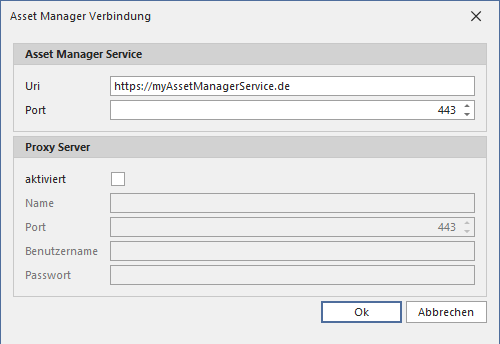
If a proxy server is required for the connection, you can check the corresponding box and enter the additional login credentials.
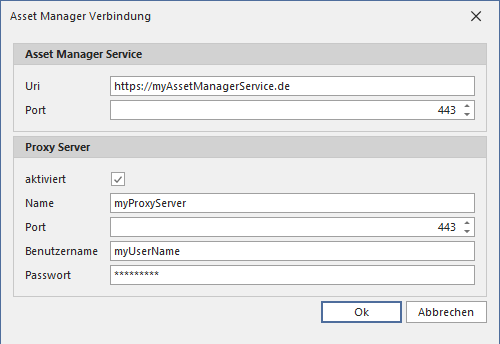
Once a valid connection is established, Asset Manager saves these settings, so you won't need to enter them again.
Pre-configure Connection
The following description is intended for internal use only.
The DefaultSettings.ini file can be stored in the Configuration folder of the Asset Manager, containing the URI mentioned above along with the corresponding port:
[DefaultSettings]
AssetManagerServiceUri=https://<Url To Asset Manager Service>
AssetManagerServicePort=443
ProxyEnabled=0
ProxyServer=
ProxyPort=0
ProxyUsername=
ProxyPassword=
If the Asset Manager is started for the first time and the URI and port fields in the dialog are empty, the information is read from the file mentioned above and entered into the corresponding fields.
The same applies to the proxy configuration: If the Asset Manager is started for the first time and the proxy server is not enabled in the current settings, the system checks whether the value for ProxyEnabled in DefaultSettings.ini is set to 0 or 1. If the value is 1, it is assumed that this is a valid proxy configuration, and the values for ProxyServer, ProxyPort, ProxyUsername, and ProxyPassword are adopted. The proxy password can be stored in encrypted or unencrypted form.
For this workaround to work, the file must be copied to the Configuration folder during setup using a Custom Action, after it has been filled with the appropriate values.