File Storage
Configuration
Starting with version 4.5, the Asset Manager has its own file storage where files can be uploaded. Unlike all other data, these files are not stored in an SQL table, but in the local file system of the server on which the Asset Manager service is installed. For this to work, two prerequisites must first be met:
- A local folder, e.g., D:\Data\, must be created on the server where the Asset Manager service is installed. On a Windows operating system, the account associated with the application pool must have full permissions in the local folder.
- Two changes must be made within the appsettings.json file:
[...]
  "ServiceOptions": {
    "UseFileStore": true,
    "FileStoreRoot": "D:\\Daten\\"
[...]
First, UseFileStore must be set to true, and second, the previously created folder D:\Data\ must be specified under FileStoreRoot.
Make sure to use two backslashes (\\) and that the path ends with backslashes.
File Manager
After restarting the Application Pool and the Asset Manager, the file manager for the file storage is available:

In the File Manager, files can then be uploaded, downloaded, viewed, or deleted using the context menu:
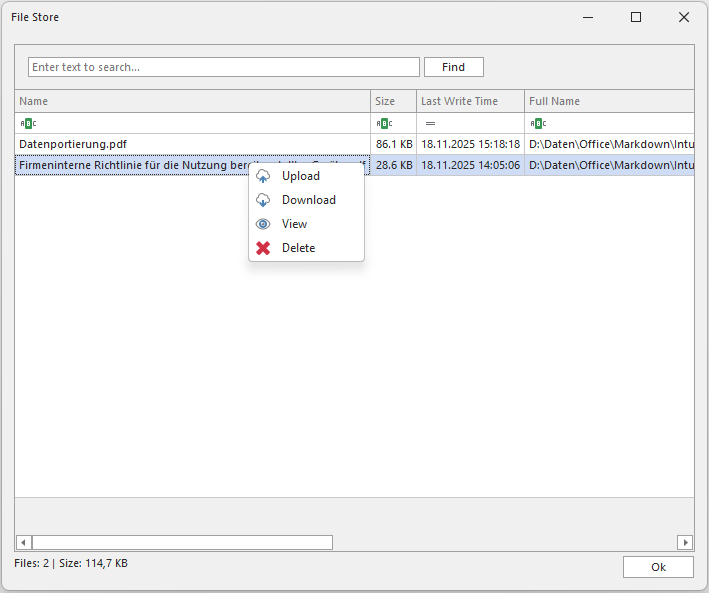
For security reasons, files that are natively executed by Windows cannot be used. Files that are interpreted and read by other programs (e.g., Office, image, or PDF documents) are not affected by this restriction.
Please also note that all users of the Asset Manager have access to these files. Their content should therefore not contain any sensitive data.
Using the Files
When editing tables, individual or multiple files can be assigned to the current data record within multi-line text fields. This is done via the context menu:
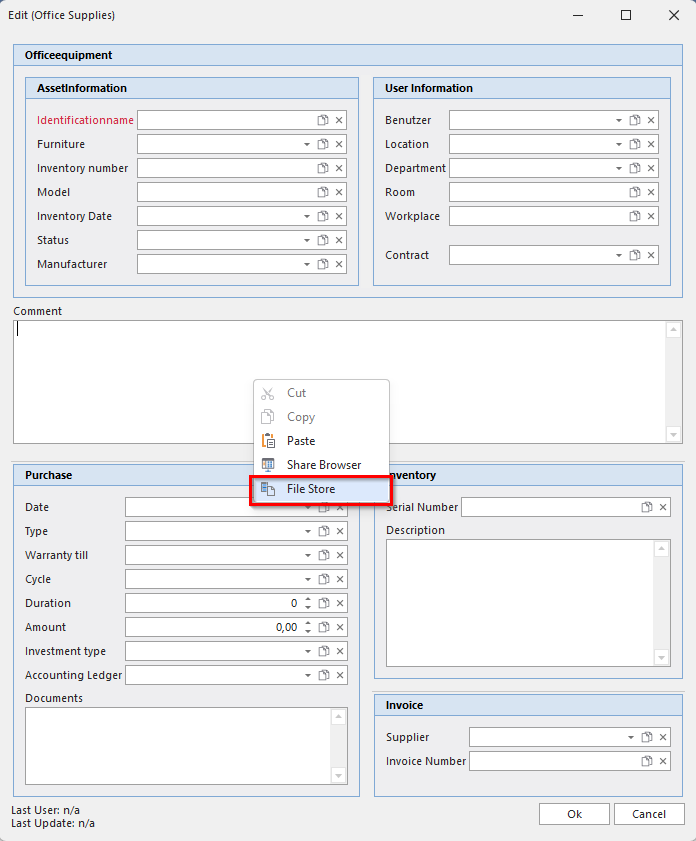
Missing files in the file storage can be added to the file storage on the fly and then selected.