Asset Manager Service (Server)
As mentioned in the system requirements, the Asset Manager Service can be installed in various ways.
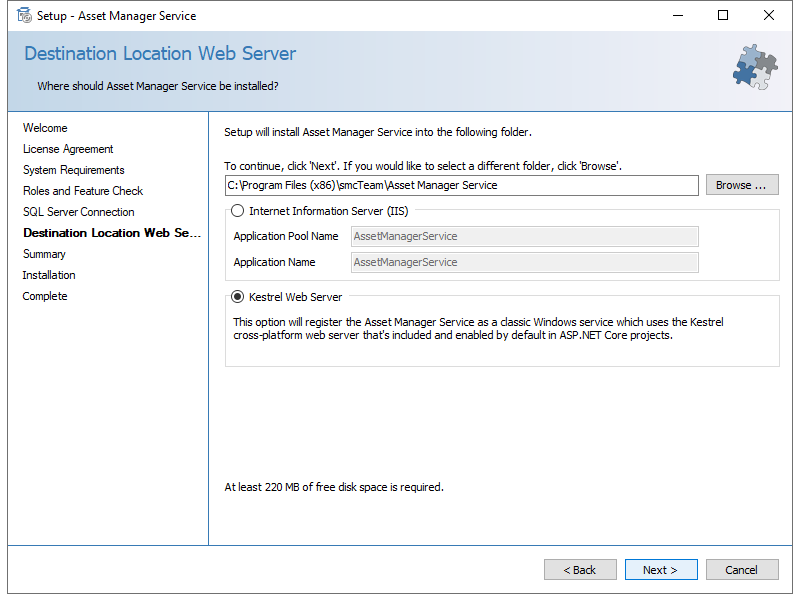
When installing on a Microsoft Windows Server that is not Windows Server 2022, the Kestrel Server must be selected as the web server.
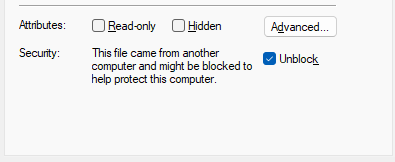
After downloading, you must check the file properties. If the “Mark of the Web” flag is set for the Setup.exe file—indicated by the text “This file is from another computer. Access may have been blocked for security reasons” at the bottom of the General tab—you must disable it by checking the “Unblock” box. Otherwise, the installation will be blocked by Microsoft SmartScreen.
Setup Procedure
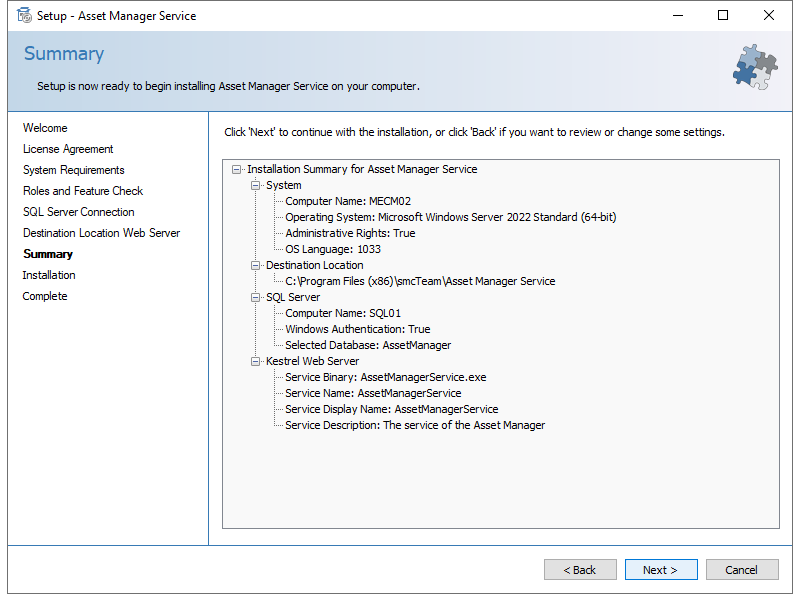
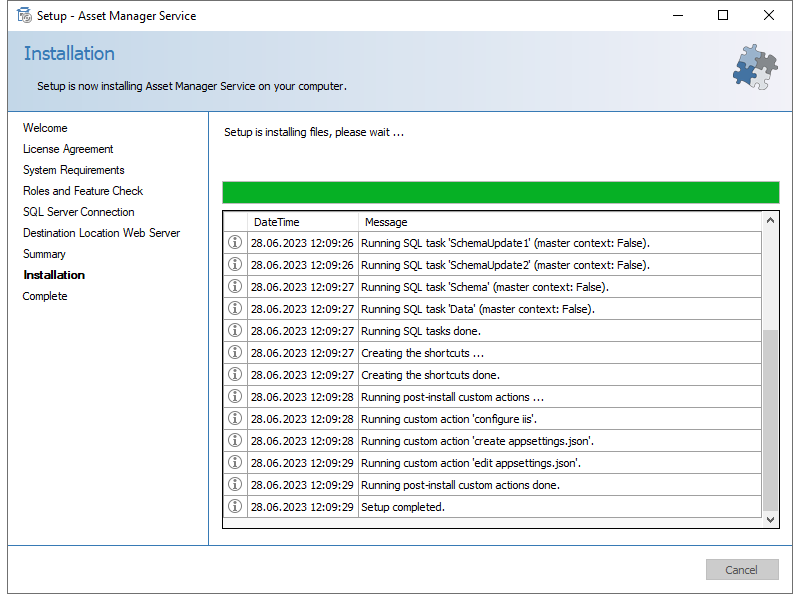
The manual installation is largely self-explanatory. After launching Setup.exe, the following steps occur:
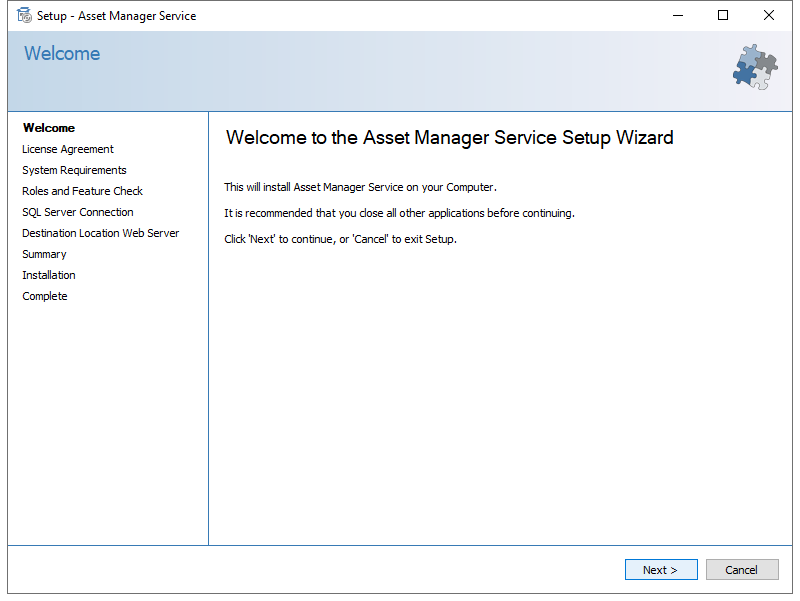
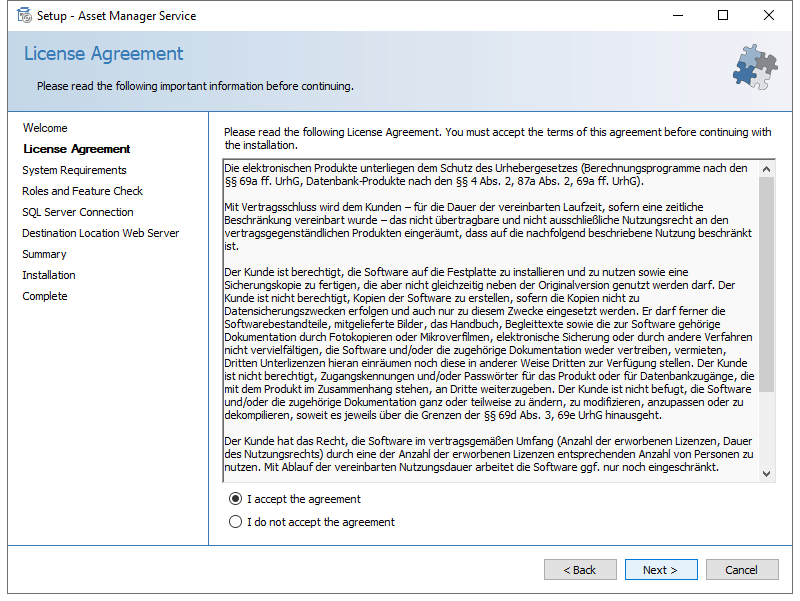
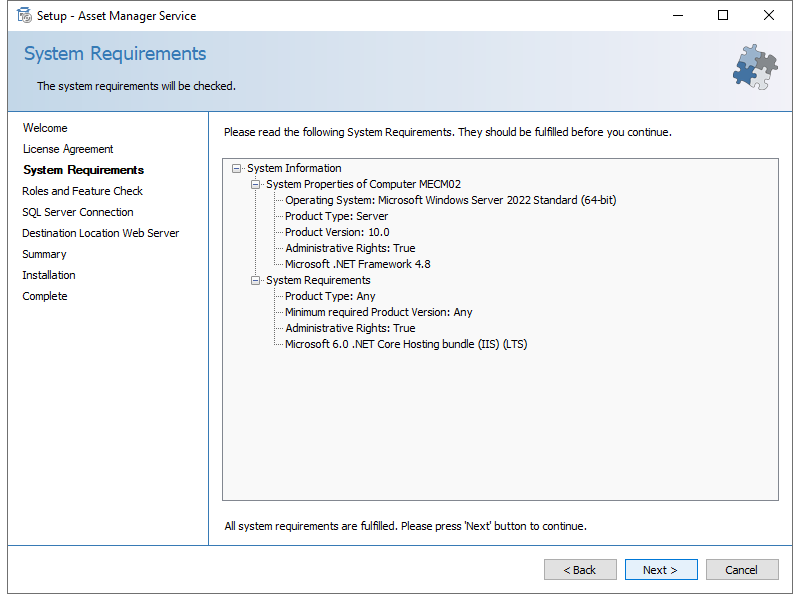
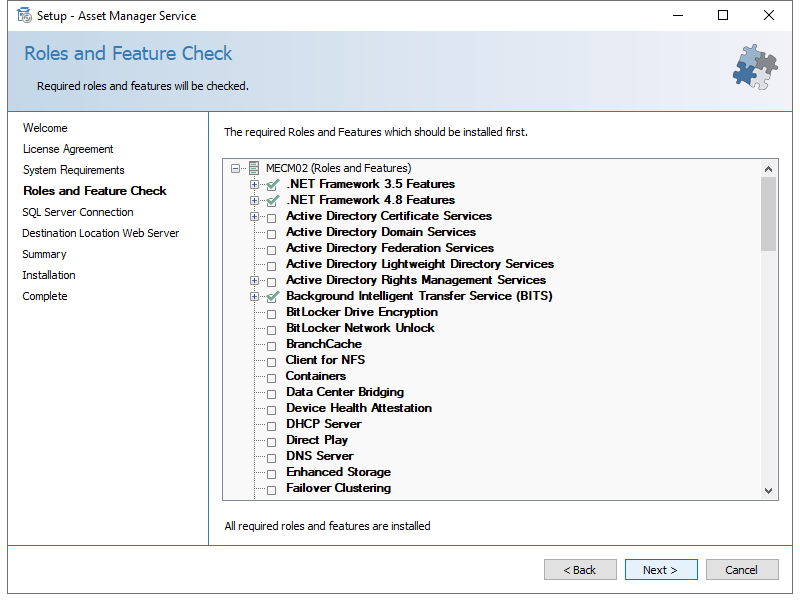
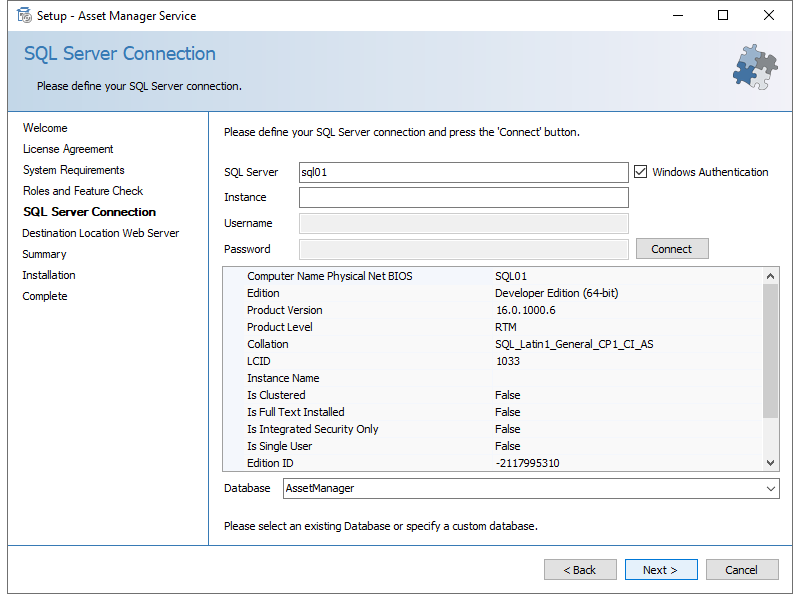
IIS may only be selected when installing on a Microsoft Windows Server 2022.
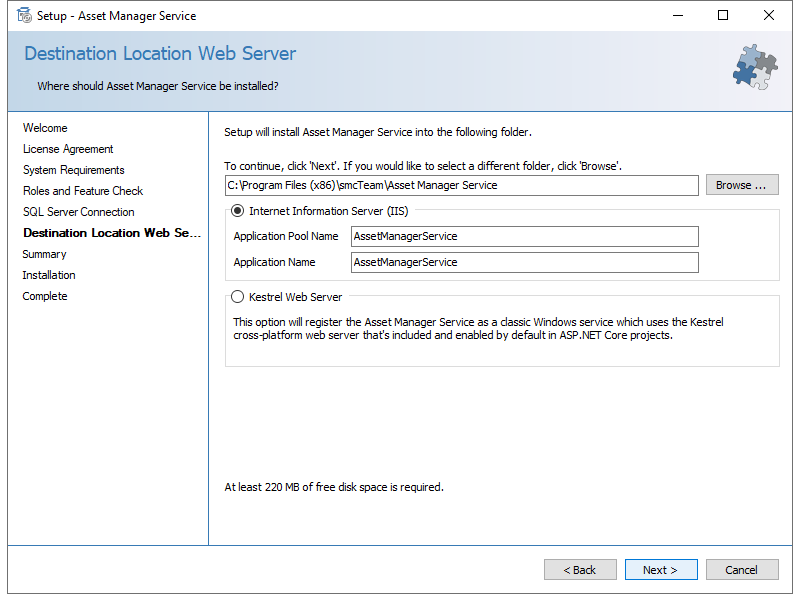
If you are installing on a Microsoft Windows Server that is not Windows Server 2022, you must select the Kestrel server as the web server.
Unattended Installation
It is also possible to run the setup as an unattended installation. To do this, open a terminal or PowerShell with administrator privileges. Navigate to the Asset Manager's Setup.exe file and run it with the -silent option:
.\Setup.exe -silent
The installation will now run in the background.
If a file named DefaultSettings.ini exists in the setup directory, it will be copied during installation and the settings will be applied.
The URI and port can be specified in DefaultSettings.ini:
[DefaultSettings]
AssetManagerServiceUri=http://localhost
AssetManagerServicePort=5000
Configuration
After installing the Asset Manager Service, it may not be ready for use until the appsettings.json file has been modified. For this reason, an editor opens at the end of the installation process, allowing you to enter any missing settings (such as paths to certificates or similar).
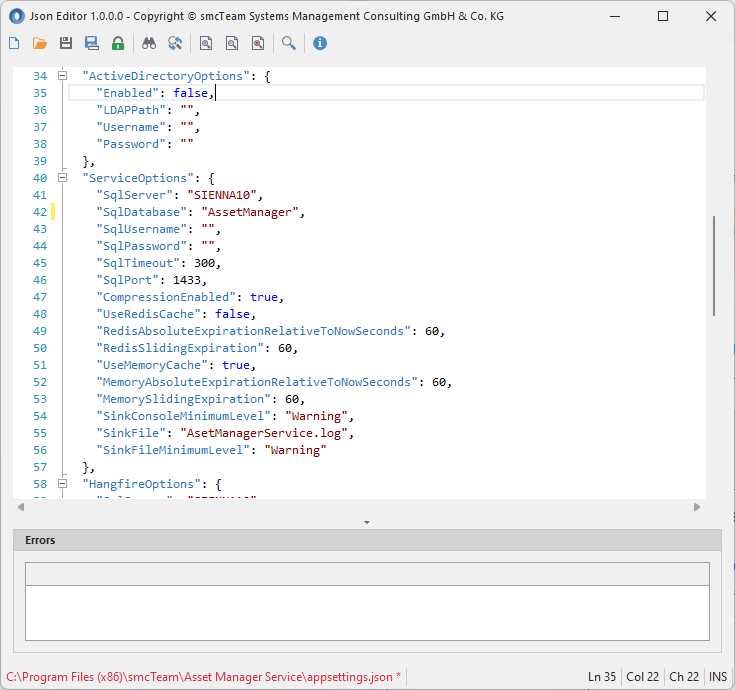
After modifying the appsettings.json file, you must restart either the IIS application pool in use or, if Kestrel was used, the Asset Manager service.